Problem and constraints
Accessibility mattered at Norton long before the recent ADA Title II changes made it a legal requirement. The company had detailed standards for ebook accessibility, and I had recently led the team through Benetech’s Global Certified Accessible (GCA) certification, which certified that our ebook workflows produce WCAG AA and EPUB 3 conformant ebook files.
What we didn’t have was an accurate diagnosis of the backlist, or an authoritative, detailed evaluation of the titles we were already selling.
Part of my role is reviewing reported accessibility issues and driving remediation across product, UX and engineering. The digital production team was quick to fix problems when customers found them. But that approach is reactive, and in a classroom it can have real consequences for students with disabilities. We needed to diagnose the backlist and validate current titles before anyone ran into a problem.
- Certification covers the process, not every book. GCA is like an A grade from a health inspector: it vouches for the kitchen, not every plate that leaves it. Benetech regularly checks a sample of ebooks from our workflow. It can’t validate every title, and isn’t meant to.
- Older titles were the most likely to have problems. Missing alt text, the most common issue, showed up most in older titles.
- The catalog is big. Hundreds of ebooks, each built from many files, and tens of thousands of PowerPoint files. Checking them by hand would never finish.
- Schools started scanning everything. To prepare for Title II’s requirement that all learning content and tools be accessible, many schools installed accessibility scanners such as Ally and YuJa Panorama in their learning management systems, often with a rule that course materials could have no errors at all. That put instructors in a tough spot, because our PowerPoint resources were what those scanners would be checking.
- The PowerPoint files were too large to download. More than 100 GB of decks, many with high-resolution images, sat in cloud storage (Amazon S3).
Decisions and implementation
- Built a first scanner for ebooks that checked the most common issue, missing alt text.
- Added DAISY Ace, the same accessibility checker Benetech uses, across every title, alongside the alt text check rather than in place of it.
- Rebuilt each ebook from the online reader, so the checks saw what customers get.
- Built a second scanner for PowerPoint files that reads them straight from cloud storage.
- Made both scanners rescan only what had changed.
- Gave the digital production team detailed reports for the backlist and current titles.
I designed and built both scanners myself, starting in early 2025, in two phases: ebooks first, then PowerPoint resources.
Phase 1: ebooks
Starting with alt text. The first version checked one thing: whether each image had alt text. It was the most common problem, especially in older titles, and it can be checked from the markup alone. Empty alt text needed the same scrutiny as none at all: legacy production scripts had left many meaningful images with empty alt text, which tells a screen reader to skip them. The scanner signs in to the online reader, walks each book’s files in reading order, and counts images with alt text, with empty alt text and with none, logging exactly which images have empty or missing alt text.
Then the whole book, with Ace. After certification, we needed to know every title met the standard, not just the sample. Benetech uses DAISY Ace as one of its core tools for evaluating ebook accessibility, so it was a natural fit for checking the catalog as a whole. For each book, the scanner records the outcome, violations by severity, the rules broken, missing alt text, and language and metadata flags.
Why the alt text check stayed. Ace was an expansion, not a replacement. Like most automated checkers, Ace treats empty alt text as the sign of a decorative image and passes it. That’s the right rule in general, but it would have reported our legacy images as fine. The separate alt text check, which counts empty alt text on its own, is what caught them.
Checking what customers actually get. Instead of testing source files, the scanner rebuilds each ebook in memory from the online reader, so the checks run against something as close to the customer experience as possible. Images and fonts are swapped for tiny placeholders, because the checks look at markup and attributes, not pixels.
Phase 2: PowerPoint resources
The second scanner checks PowerPoint files against WCAG 2.2 AA-style criteria:
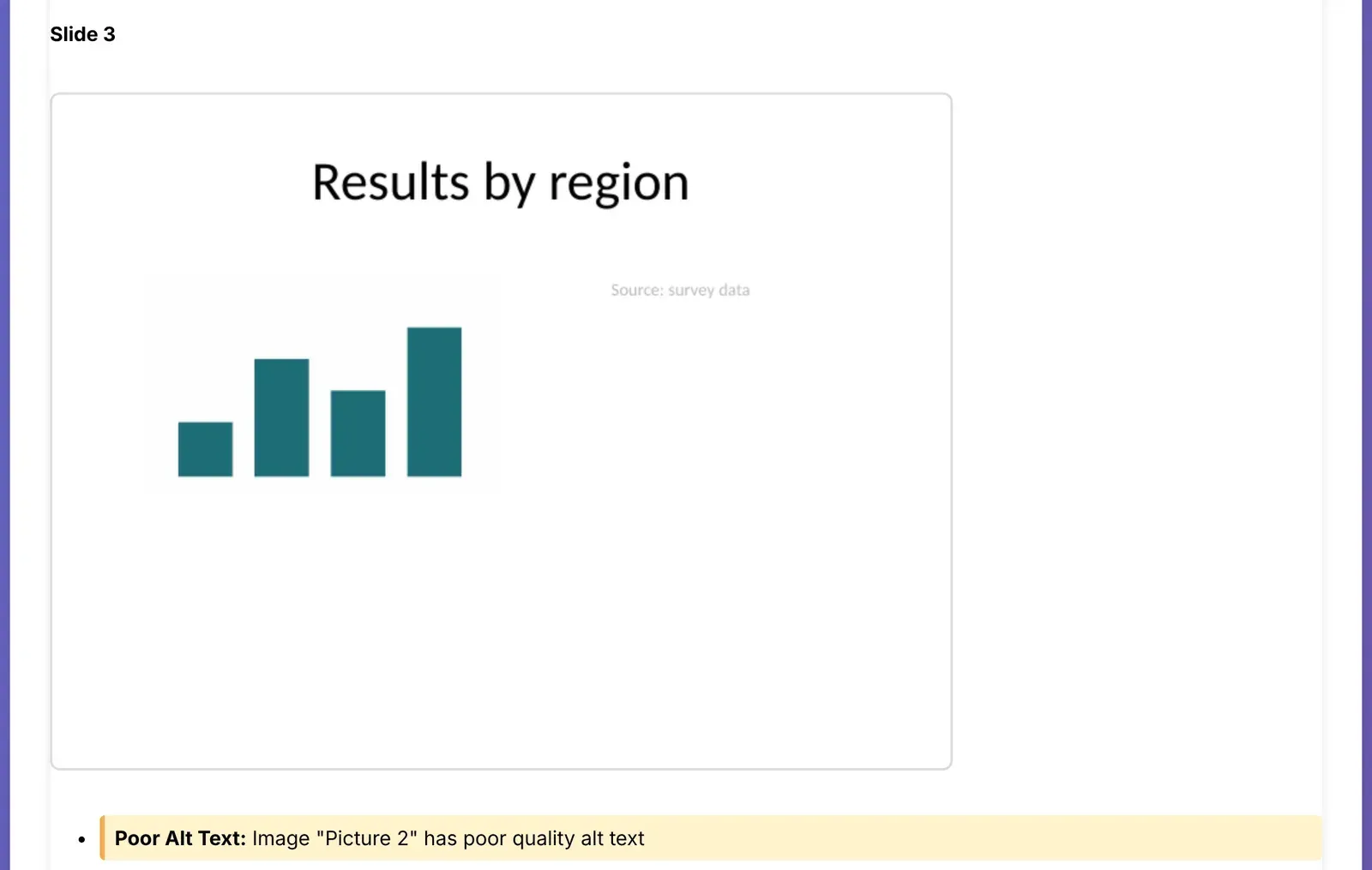
- missing alt text, including a file name (“chart.png”) used as alt text, and in strict mode, alt text that’s too short or generic (“image”); images marked as decorative are skipped
- images of text, using optional text recognition
- slides without titles, and the deck’s heading structure
- tables without header rows
- link text that doesn’t describe the destination (“click here”)
- text contrast, against WCAG’s 4.5:1 and 3:1 thresholds
- reading order, and in strict mode, complex layouts that may read out of order
- auto-advancing slides and auto-playing or excessive animation
- the document’s language
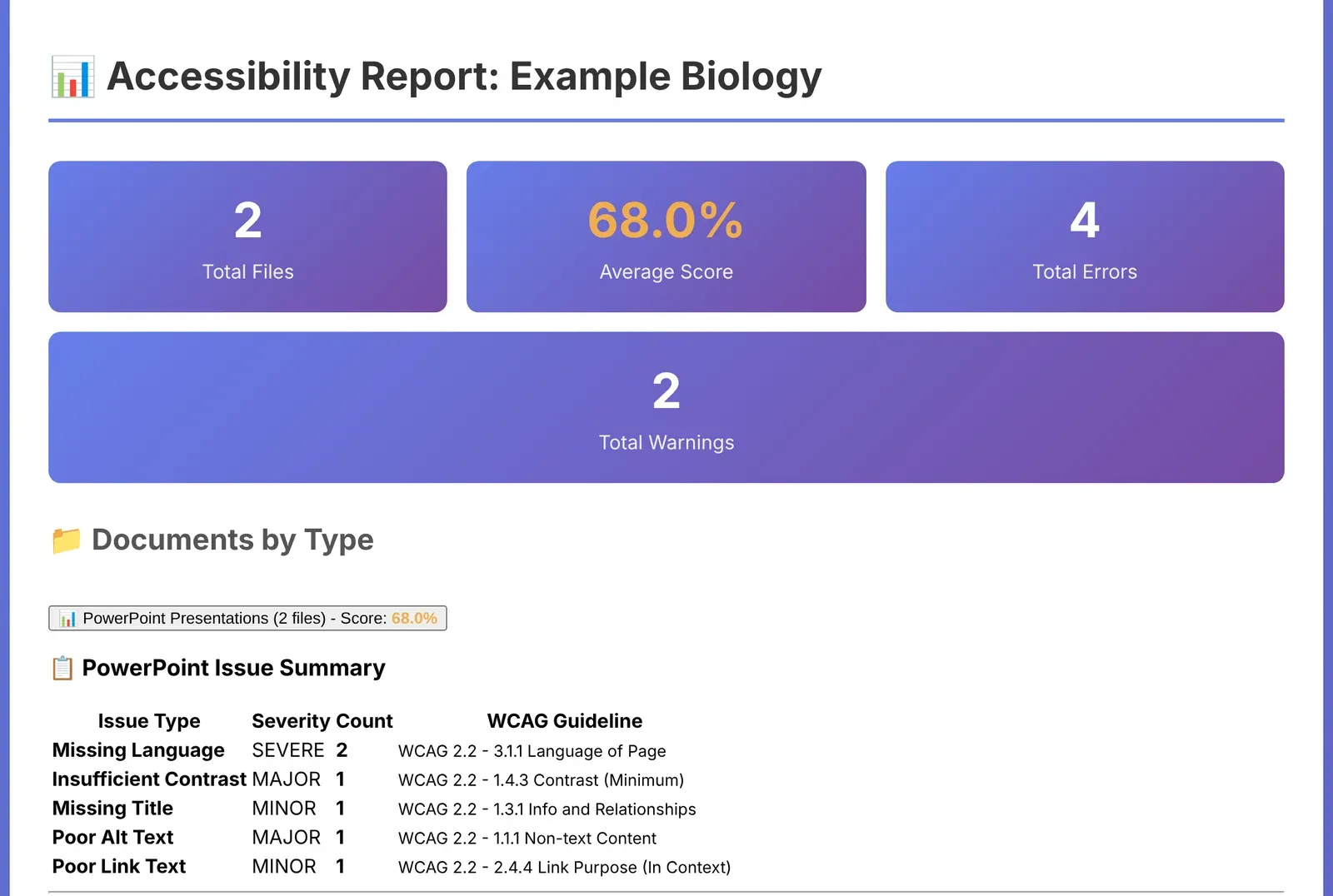
Downloading more than 100 GB of decks wasn’t practical, so a bulk version reads the archives straight from cloud storage, opens each deck in memory, and runs archives in parallel. It writes one report, and a local version produces detailed per-deck reports with screenshots of only the slides that have issues.
Why fix everything, even the false positives. Automated scanners don’t have enough context. Many of the issues the schools’ scanners flagged were false positives, such as reading order on slides or the contrast of non-essential text like a copyright line. Before scanners, accessibility was judged by its impact on actual students in the classroom. Moving the evaluation earlier, before a problem disrupts a student’s learning, is a real improvement. But scanners rarely weigh how much an issue matters. So our approach was to fix every issue, whether or not it made a meaningful difference to students. Even when a fix doesn’t change much for a student, it makes evaluating the content easier for instructors, and lets them spend their time teaching instead of chasing abstract compliance scores. I modeled the PowerPoint scanner’s per-slide scoring on the approach those tools use, so our results lined up with the scores instructors would see.
Rescanning only what changed
A full scan of either catalog takes time, so later scans focus on what’s new. The ebook scanner can resume where it stopped and rescan only books whose files changed. The PowerPoint scanners skip decks and archives that haven’t changed since the last scan.
From reports to fixes
Overall, accessibility was good, thanks to the program’s standards, processes and documented practices. But any book with missing alt text, color contrast problems or headings that were only visual wasn’t good enough. I gave the digital production team detailed reports across the backlist and current titles, so they could plan fixes by scale instead of waiting for complaints.
Results and limitations
- Every title checked. All 700+ ebook titles and all 27,000 PowerPoint files were scanned.
- The most common issues were color contrast, missing alt text, and occasionally headings that looked like headings but weren’t marked up as headings.
- Within the first year, most titles had alt text, with a concrete roadmap for the rest.
- Automation finds problems; it doesn’t judge quality. Scanners can tell you an image has no alt text, but not whether the alt text it has is good. The same goes for captions on videos and accessibility metadata in ebooks. Writing those, and checking them, still takes people.
- Scanners still need a knowledgeable person. They can’t tell how much an issue matters, and they flag false positives. Someone who understands accessibility still has to test, and judge the results.
- A clean scan isn’t a conformance claim. Contrast and reading order checks in PowerPoint are heuristics, and automated checks catch only part of what WCAG covers.
What I would change
Bring in Ace sooner. I started with alt text alone because it was the most common problem and the easiest to check. Ace is far more comprehensive, and running it from the start, alongside the alt text check, would have shown the full picture earlier.